How To Build a WordPress Website in 2026 (Step-by-Step Guide)

Learning how to build a WordPress website in 2026 is easier than ever, but doing it properly still trips up most beginners. Wrong hosting. Bloated themes. Plugins that break each other. Sites that load in eight seconds and rank nowhere.
We’ve spent more than a decade building 500+ WordPress sites for Australian businesses, and this guide is the exact process we use, stripped down to what a beginner actually needs.
You’ll learn the setup, the tools, and the shortcuts we use ourselves, so you can launch a WordPress site that actually works.
Let’s jump in and start building.
Key Takeaways
- WordPress powers 43% of the internet.
- WordPress.com and WordPress.Melbourneorg are different platforms.
- If you need customisation and flexibility, WordPress.org is the right choice.
- WordPress.com is a DIY platform like WIX and Shopify and requires a monthly fee.
- You need separate hosting for WordPress.org.
- Themes help you with the look and feel of your website.
- Plugins are used for additional functionality and features.
- Most of the best plugins for WordPress are free.
Table of Contents
- WordPress.org Vs WordPress.com: Which is the Best Choice?
- What do You Need to Build a WordPress Website?
- How to Create a WordPress Website?
- WordPress Website Tips and Tricks
- Should You Use AI to Build Your WordPress Website?
- Should You DIY or Hire a WordPress Expert?
- Bonus: WordPress Website examples
- Conclusion
- Build A WordPress Website FAQs:
WordPress.org Vs WordPress.com: Which is the Best Choice?

Get Your Free Website Audit
($3,000 Value)
- Uncover performance issues
- Identify SEO opportunities
- Security gaps, and quick wins
You can build your own website using either WordPress.com or self-hosted WordPress through WordPress.org. Both use the same block editor and content management system, but they differ in how much control you get.
WordPress.com is a hosted platform that takes care of everything for you: hosting, security, updates, and backups. It’s beginner-friendly and offers a free plan, but you’ll need to pay for advanced features like premium themes, custom plugins, and extra storage. You’re also limited in what you can customise.
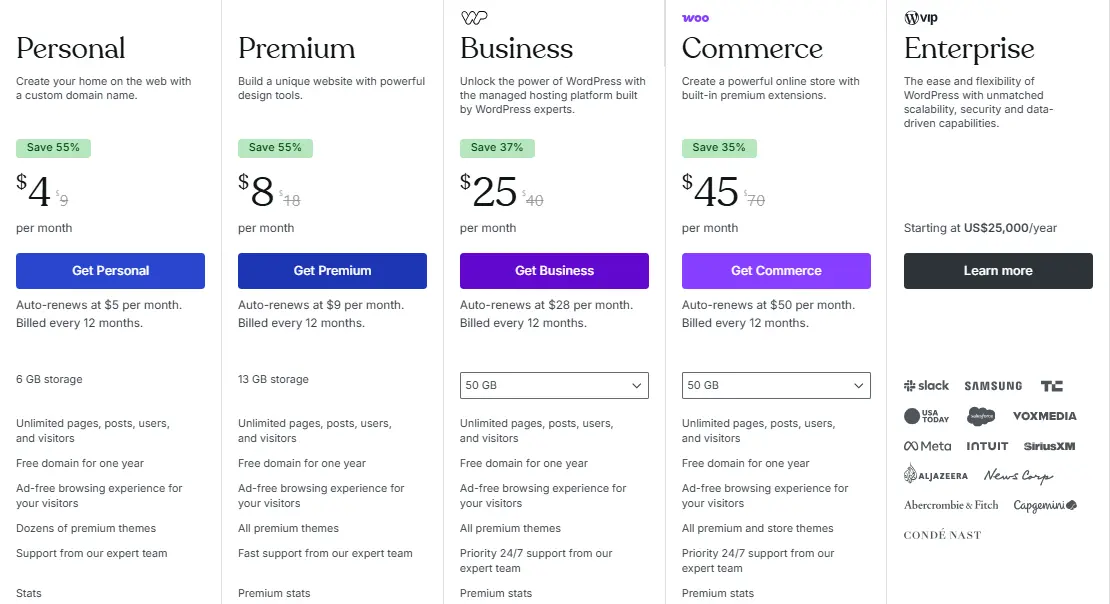
WordPress.org is self-hosted WordPress. You’ll need a reliable managed WordPress hosting provider, but in return, you get full control over your site, access to thousands of free themes, and the flexibility to install any plugin or custom code.
For more information about these two platforms, read WordPress.com and WordPress.org: Which one to pick?
What do You Need to Build a WordPress Website?
To get started, you’ll need a few essentials.
If you choose WordPress.com, you can simply sign up, pick a plan, and launch your site, all managed for you.
If you go with WordPress.org, here’s what you’ll need:
- A domain name (e.g., www.yoursite.com)
- Web hosting (where your website files will be stored)
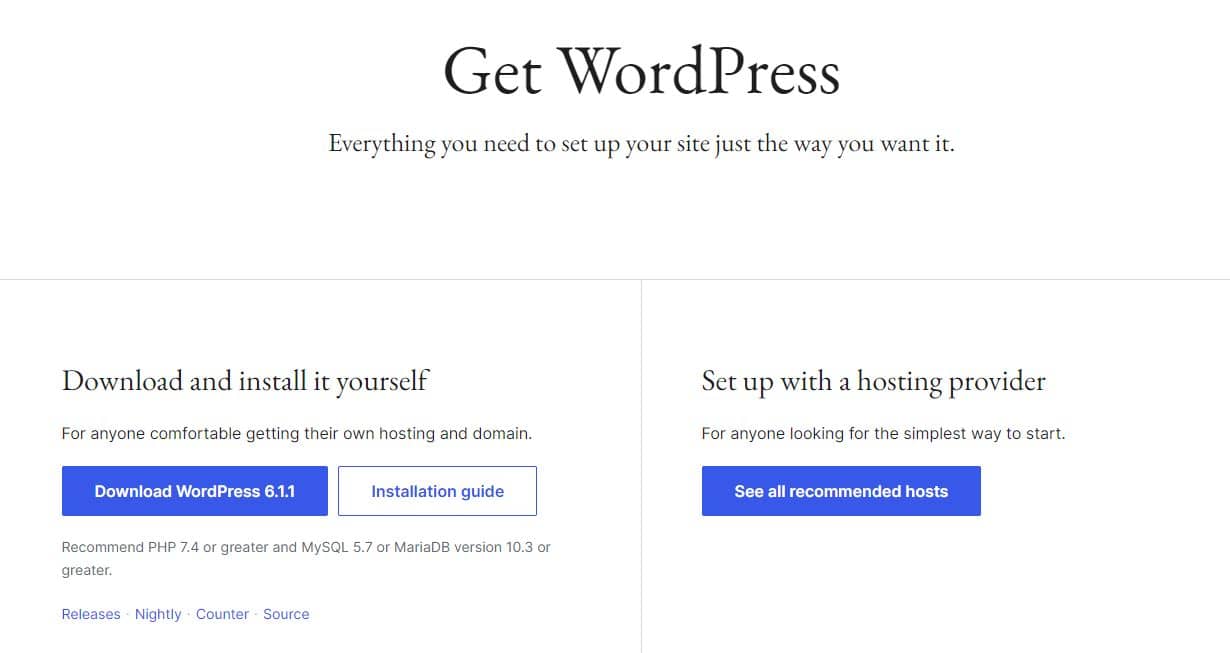
- The WordPress software (downloadable from WordPress.org)
- A theme (the overall design of your website)
- Plugins (which add extra features and functionality to your site)
With these five essentials, you’re ready to build your own website with full control.
How to Create a WordPress Website?
Here is a 9-step checklist you may want to refer while building your WordPress website:
- Step 1: Choose a Domain Name and Hosting
- Step 2: Install WordPress
- Step 3: Select a WordPress Theme
- Step 4: Update Your Content
- Step 5: Install Some Plugins
- Step 6: Customise Your Website
- Step 7: Tighten Security
- Step 8: Optimise Your Website for Performance
- Step 9: Maintain Your WordPress Website
Let’s go through each step in detail.
Step 1: Choose a Domain Name and Web Hosting
Your domain name is your website’s address. It’s what people type into a browser to visit your live site. It’s also linked to your business emails, so they’ll end with your own domain name.
To register a domain, you can use providers like GoDaddy, CrazyDomains, or VentraIP. Some hosting companies even offer a free domain name when you sign up.
Next, you’ll need web hosting. WordPress offers two options: WordPress.com and WordPress.org, and it’s easy to get them confused.

With WordPress.com, hosting is included, and there’s a free domain option, but your site will use a subdomain like “yoursite.wordpress.com”. It’s simple and ideal for beginners.
With WordPress.org, you’ll use the open-source software and get your own domain name. You’ll need to sign up with a hosting company and pay for a plan. We recommend going for managed WordPress hosting for better speed, support, and security.
If you want full control and better performance, WordPress.org with a good WordPress hosting provider is the way to go.
Step 2: Install WordPress
Once you’ve set up your hosting account, the next step is to install WordPress. Most hosting providers offer a quick setup through a WordPress installer, making the installation process just a few clicks.
A. One-click WordPress installation (recommended)
If you’re with a managed WordPress host like Kinsta, WP Engine, SiteGround, or Hostinger, WordPress is either pre-installed or available through a one-click installer in your hosting dashboard.
Here’s how it works on most hosts:
- Log in to your hosting dashboard and find “Install WordPress.”
- Choose the domain you want to install on
- Set your site title, admin username (avoid “admin”), strong password, and admin email
- Click install and wait 1 to 3 minutes
- Log in at yoursite.com/wp-admin using the credentials you just set
That’s it. WordPress is installed and ready to use.

Slow website wasting your marketing spend?
- Uncover performance issues
- Identify SEO opportunities
- Security gaps, and quick wins
B. Manual installation (if your host doesn’t offer one-click)
If your host doesn’t offer a one-click installer, you can install WordPress manually through cPanel.
1. Download WordPress
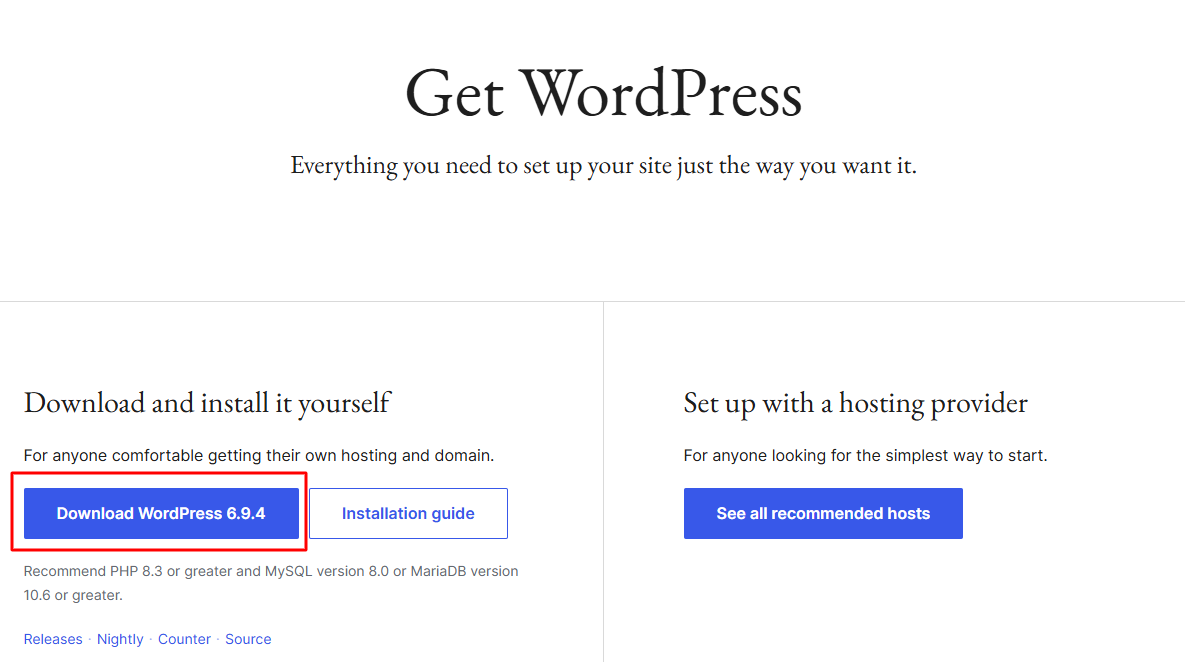
- Go to WordPres.org and download the latest WordPress zip file.
2. Upload WordPress to your hosting
- Log in to your hosting cPanel, open File Manager, and navigate to the public_html folder (this is your live website’s root directory).
- Upload the zip file you just downloaded, then right-click and extract it.
3. Create a MySQL database in cPanel
- In cPanel, find “MySQL Databases” or the “MySQL Database Wizard.”
- Create a new database with a name of your choice, then create a database user with a strong password.
- Give the user “All Privileges” on the database.
Important: never use defaults like username “root” or password “password” on live hosting. Pick a unique database name, a unique username, and a strong randomly generated password. Save them somewhere secure. You’ll need them in the next step.
4. Launch the WordPress installer
- Open your browser and go to your domain (yoursite.com).
- The WordPress installer launches automatically.
- Choose your language and click “Continue.”

5. Connect WordPress to your database.
- WordPress will prompt you to create a configuration file. Click “Let’s go,” then enter the database name, username, and password you created in step 3.
- Most hosts use “localhost” for the database host. If yours doesn’t, your hosting provider can tell you.
6. Launch the WordPress installer
- Once WordPress confirms it can connect to your database, click “Run the install.”

7. Set up your admin account
Fill in the WordPress welcome page:
- Site Title: your website name
- Username: anything except “admin” (the most attacked username on the internet)
- Password: use a strong, randomly generated password
- Your Email: your real email for password recovery
- Search Engine Visibility: leave this unticked unless you want your site indexed by Google
Click “Install WordPress“

8. Log in
- You’ll see a success page. Click “Log In” and enter the username and password you just set.

You’re now in the WordPress dashboard, ready to set things up.
Settings to update before adding content
Once you log in for the first time, change these five WordPress settings before doing anything else. Skipping them now means redoing work later.
- Change the default admin username
“admin” is the most attacked username on the internet. Create a new admin user with a different name and delete the original.
- Set your site title, tagline, and timezone
Settings → General.
- Change your permalink structure to “Post Name.”
Settings → Permalinks. Critical for SEO. The default URLs (/?p=123) will hurt your rankings from day one. - Upload your favicon
Appearance → Customise → Site Identity. - Delete the default sample content
WordPress ships with a “Hello World” post and a sample page. Bin both.
With WordPress installed and your basic settings dialled in, you’re ready to choose a theme.


Want this done for you? If hosting setup and installation already feel like a tangent from running your business, our WordPress development team in Brisbane handles the technical setup so you can focus on launching. Most builds go live in 6 to 8 weeks.
Step 3: Select a WordPress Theme
Your theme controls how your website looks and behaves. It’s also where most beginners make their first expensive mistake. They pick a theme that looks stunning in the demo, then discover six months later that it’s slow, bloated, and a nightmare to customise.
Free vs premium themes
Free themes from the WordPress.org directory are fine for testing an idea or building a simple personal site. Just check that the theme has been updated within the last six months.
Premium themes cost $50 to $100 one-off, or $50 to $200 per year. You get faster performance, better design, ongoing updates, and proper support. For any site that matters commercially, the upgrade is worth it.
What to look for
Most beginners pick themes based on the demo. Wrong starting point. Use this checklist instead:
- Lightweight code. Avoid anything labelled “multi-purpose” or with a demo that takes more than three seconds to load.
- Mobile responsive by default. Over 60% of Australian web traffic comes from mobile.
- Compatible with your page builder. Elementor, Bricks, Breakdance, or native Gutenberg. Confirm before installing.
- Active development. When was the theme last updated? Abandoned themes become security risks within a year.
- Honest reviews. Search beyond the marketing site. Reddit and developer blogs give the real story.
Themes we recommend the most
Across 500+ client builds, our four defaults are Astra, Kadence, GeneratePress, and Blocksy. For complex projects, we build custom themes from scratch.
How to install a theme
Once you’ve picked one:
- Go to Appearance → Themes → Add New
- Search for the theme by name (or upload the zip file if you bought premium)
- Click Install, then Activate
- Open the theme’s customiser to set your colours, fonts, and logo

Step 4: Update Your Content
WordPress uses two main content types: pages for static content (Home, About, Services, Contact) and posts for dated content like blog posts.
Essential pages every site needs
Before adding content, plan your pages. Most professional sites need:
- Home: what you do, who you serve, what to do next
- About: your story, credibility, who you’ve worked with
- Services (or Products): a clear page for each main offering
- Contact: address, phone, email, and a contact form
- Privacy Policy: legally required if you collect any data
- Terms of Service: protects you legally and sets expectations
Adding a page or post
The process is the same for both:
- Go to Pages → Add New (or Posts → Add New)
- Add your title, then write content using Gutenberg blocks (or your page builder if you’ve installed one)
- For posts, assign a category and add a featured image
- Click Publish
Adding pages to your menu
Once your pages are published, add them to your navigation:
- Go to Appearance → Menus
- Select the pages you want to add
- Click Add to Menu, drag to reorder, then Save Menu
With your core pages live, the next step is adding functionality through plugins.
Step 5: Install WordPress Plugins
When you install plugins, you extend WordPress with features you can’t get from the core software, including SEO tools, security, contact forms, backups, and faster page loads. All without writing a single line of code.
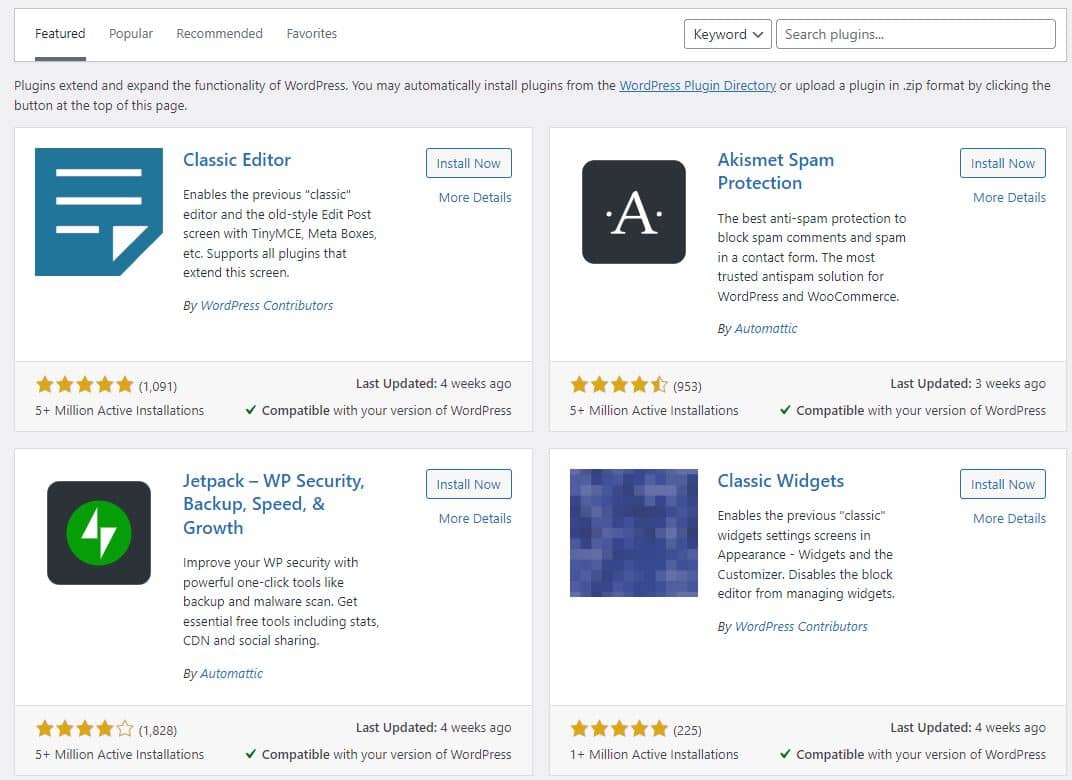
How to install a plugin
- Go to Plugins → Add New
- Search by name, or upload a zip file if you bought a premium plugin
- Click Install Now, then Activate
Essential plugins for a new site
Every WordPress site we build starts with the same core stack:
- SEO: Rank Math or Yoast SEO. Both handle on-page SEO, sitemaps, and schema. Rank Math is free. Yoast has paid upsells.
- Security: Wordfence or Solid Security. Blocks brute-force attacks, scans for malware, and locks down logins.
- Backups: UpdraftPlus or BlogVault. Schedule daily backups to Google Drive, Dropbox, or remote storage.
- Caching and speed: WP Rocket (paid) or LiteSpeed Cache (free if your host supports it). Cuts load times by 50% or more.
- Contact forms: Fluent Forms or WPForms. Easier and lighter than Contact Form 7.
For deeper recommendations in any category, see our guides to the best SEO, security, cache, analytics, and social media plugins for WordPress.
Step 6: Customise Your Website
With your theme installed and core pages live, it’s time to make the site look like yours.
Most customisation happens in one of two places:
- WordPress Customiser (Appearance → Customise) for classic themes like Astra, Kadence, or GeneratePress
- Site Editor (Appearance → Editor) for newer block themes like Blocksy
What to customise first
- Logo and favicon. Upload both under Site Identity. Skipping the favicon makes your site look unfinished.
- Brand colours. Set primary, secondary, and accent colours so they apply globally instead of styling each page individually.
- Typography. Pick one heading font and one body font. More than two slows your site and looks amateur.
- Header and footer. Set your menu, contact details, and social links. Footer should include copyright, privacy/terms, and quick navigation.
- Homepage layout. Decide whether your homepage shows blog posts (the default) or a custom static page under Settings → Reading.
Step 7: Tighten Security
WordPress is a powerful platform, but its popularity also makes it a common target for security threats. Fortunately, there are preventive measures you can take to improve WordPress security for your website and make it less vulnerable to attack.
- Keep WordPress and plugins updated: Always run the latest version of WordPress and your plugins. WordPress updates often include important security patches that protect against known vulnerabilities.
- Use strong, unique passwords: Avoid simple or reused passwords. Create strong passwords using a mix of uppercase letters, numbers, and symbols, and consider using a password manager.
- Install a security plugin: Tools like Wordfence, Solid Security, or Sucuri help block threats, scan for malware, and offer extra login protection.
- Enable HTTPS on your site: Make sure your website uses a secure connection (https://). This encrypts data and protects login sessions from being intercepted.
- Use a backup plugin: Set up regular backups using plugins like UpdraftPlus or BlogVault. If anything goes wrong, you can quickly restore your site.
- Limit access and change passwords regularly: Avoid giving admin access to too many users. Update passwords often and review user roles to ensure only trusted users have backend access.
Step 8: Optimise Your Website for Performance
Website speed matters. Research shows that 47% of users expect a page to load in under 2 seconds, and nearly 40% will leave if it takes more than 3 seconds.
A slow website not only drives away visitors but also hurts your rankings. Google prioritises fast-loading sites, so improving your site speed boosts both user experience and visibility in search.
Here are a few steps you can take to improve your WordPress website performance:
- Choose performance-focused hosting: Cheap shared hosting is the single biggest cause of slow WordPress sites. Hosts like Kinsta, WP Engine, and Cloudways are built for WordPress speed.
- Install a caching plugin: WP Rocket (paid) or LiteSpeed Cache (free) typically cuts load times by 50% or more in one install.
- Optimise your images: Use ShortPixel or Smush to compress automatically. Convert to WebP format where possible. Lazy load images below the fold.
- Minify CSS, JS, and HTML: Most caching plugins handle this. It removes unnecessary characters from your code and shrinks file sizes.
- Use a CDN: Cloudflare’s free tier is enough for most sites. It serves content from a server closer to the visitor, cutting load times globally.
- Audit your plugins: Every active plugin adds weight. Remove anything you’re not using.
- Limit external scripts: Chat widgets, fonts, analytics, and ad pixels all add load time. Audit what you actually need.
A well-built WordPress site should load in under 2 seconds. If yours doesn’t, one of the items above is the culprit.
Website speed is only one part of the equation. Learn how to build a high-converting WordPress site that improves user experience, engagement, and lead generation.
Step 9: Maintain Your WordPress Website
Most WordPress sites that fail in their second year fail because nobody maintains them. Updates pile up, plugins go stale, security patches get skipped, and one day the site breaks or gets hacked.
Maintenance keeps your entire website secure, fast, and visible in search. These are the minimum routines we run on every client site:
Weekly:
- Run WordPress core, theme, and plugin updates (test on a staging site first if possible)
- Check uptime and page speed via tools like UptimeRobot or Pingdom
- Review security plugin alerts
Monthly:
- Audit and remove unused plugins, drafts, and media
- Check Google Search Console for crawl errors and indexing issues
- Review broken links with a plugin like Broken Link Checker
- Check your URL structure and fix any technical SEO issues
Quarterly:
- Test backup restore (an untested backup is not a backup)
- Review user accounts and remove inactive admin users
- Run a full performance audit (PageSpeed Insights, GTmetrix)
If this routine feels like a lot, it is. Most business owners don’t have the time or appetite for it. Our WordPress Care Plan handles all of this monthly, so you can focus on running your business.
WordPress Website Tips and Tricks
Once your website is live, there are a few extra things you can do to make it more effective, secure, and easier to manage. Here are some practical WordPress tips:
- Use a Child Theme for Custom Changes: If you want to tweak your theme’s code or style, use a child theme. It keeps your changes safe during theme updates.
- Set Up Google Analytics and Search Console: Track how people find and use your website. These tools give you data to improve traffic, content, and user experience.
- Limit Login Attempts to Block Brute Force Attacks: Add a plugin that limits login attempts to stop hackers from repeatedly trying passwords.
- Use Lazy Loading for Images and Videos: Lazy loading helps your pages load faster by only loading media when users scroll to them, improving speed and SEO.
- Create a Custom 404 Page: Instead of a boring error page, design a helpful 404 page with links to popular posts or your home page to keep visitors on your site.
- Clean Up Your Media Library: Remove unused images and files to save space and keep your site fast and organised.
- Schedule Regular Backups: Even if you’ve installed a backup plugin, make sure it runs on a schedule and stores backups offsite (e.g., Google Drive or Dropbox).
- Hide Your Login URL: Change your login page from /wp-admin to something custom using a security plugin. This reduces the chances of automated attacks.
Should You Use AI to Build Your WordPress Website?
In 2026, AI tools like Hostinger AI Website Builder, 10Web, and Divi AI promise a working WordPress site in minutes. The honest answer on whether to use them: AI is good at speed, average at design, and bad at strategy.
Where AI helps: drafting first-pass content, generating placeholder images, writing meta descriptions and alt text at scale, and brainstorming layouts.
Where AI falls short: strategic decisions, brand voice, custom integrations, real SEO, and performance optimisation.
For hobby projects and quick tests, AI builders are genuinely useful. For business websites that need to convert, AI is a tool, not a replacement. The sites we see come back for rebuilds within 12 months are almost always the ones built end-to-end by AI.
Use AI to speed up the parts you’d be doing manually anyway. Don’t use it to skip the parts that drive results.
Should You DIY or Hire a WordPress Expert?
You’ve now seen the full process. Nine steps, dozens of decisions, and that’s just to launch. Ongoing maintenance, security, performance, and content sit on top of that.
Choose DIY if:
- You’re building a personal site, hobby project, or simple portfolio
- The site doesn’t directly drive revenue
- You enjoy the technical side and want to learn
- You have time to spend 40 to 80 hours over the next month getting it right
- The cost of getting things wrong (slow site, security breach, downtime) is low
If that’s you, follow this guide, and you’ll have a working WordPress site by next weekend.
Hire a freelancer if:
- You need a one-off site with no ongoing complexity
- Your budget is between $2,000 and $7,000
- You can manage a single contractor and review their work
- You don’t need strategy, design, copy, or SEO baked in
Freelancers vary wildly in quality. Look for one with at least 5 years of WordPress experience, a portfolio of sites still live and performing well, and clear communication.
Choose a Web Design and Development Agency if:
- Your website directly drives revenue (lead gen, eCommerce, bookings)
- You need strategy, design, copy, SEO, and development working together
- You want one team accountable for the outcome, not five contractors pointing at each other
- You’re investing $5,000 or more and want it built to last
- You don’t have time to manage the project yourself
This is where most Australian businesses end up once they account for the real cost of DIY: their own time, the cost of mistakes, and the lost revenue from a slow, poorly-converting site.
Bonus: WordPress Website examples
WordPress is a great platform because it is customisable and relatively easy to use. Some popular companies that use WordPress are:
1. Time.com

2. Facebook Newsroom
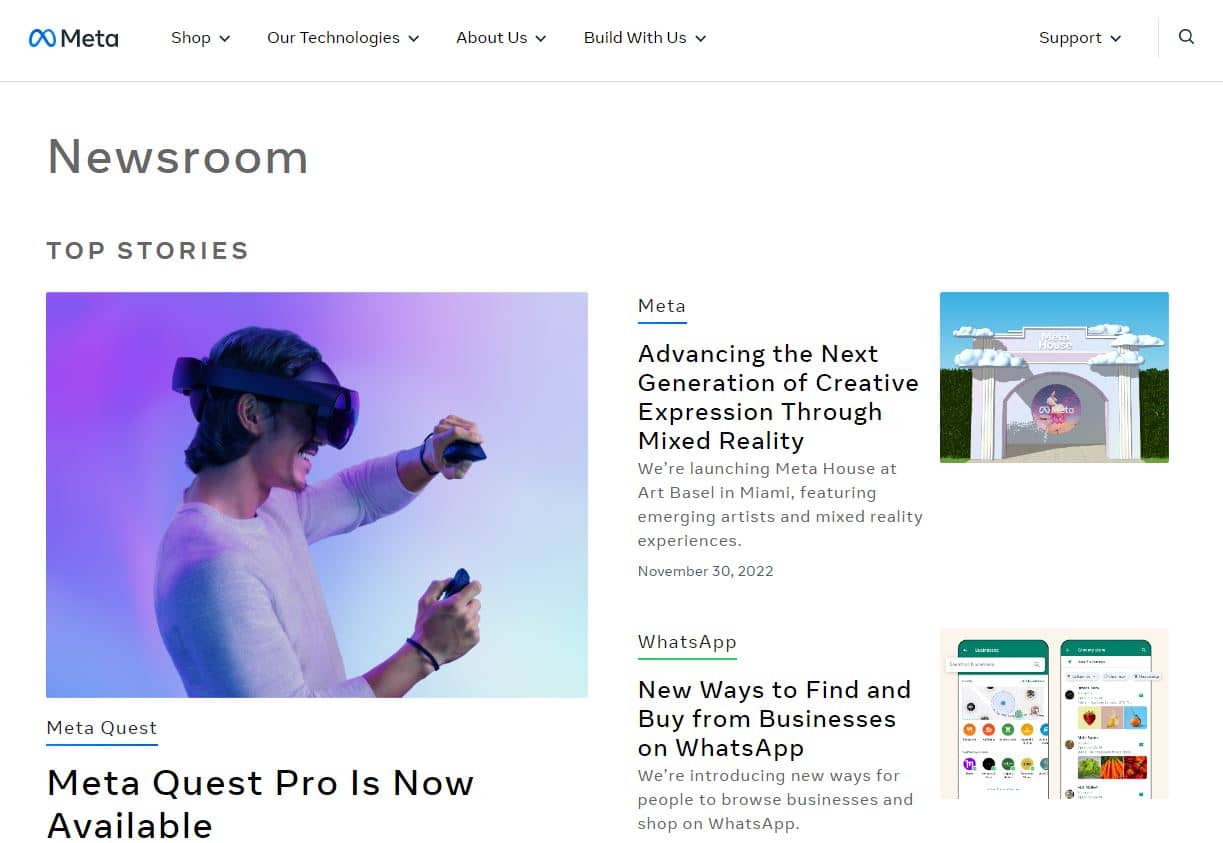
3. The Next Web

4. The Obama Foundation

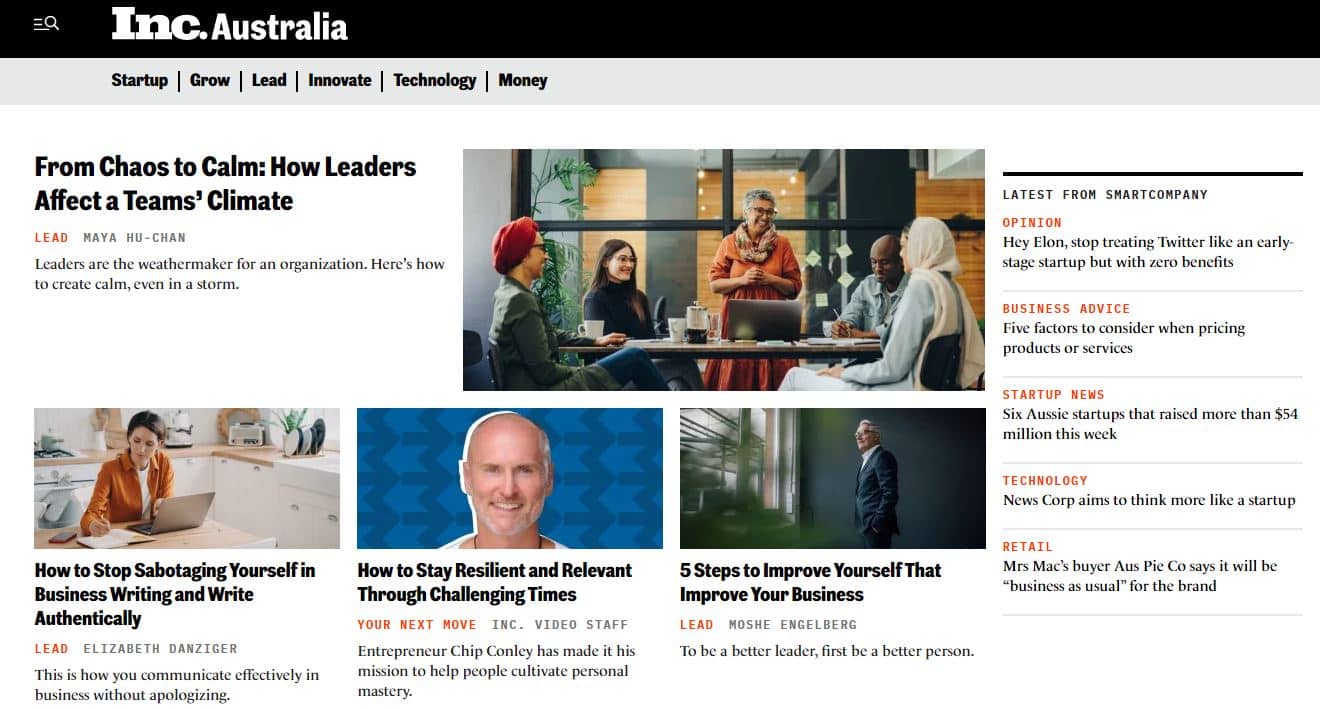
5. Inc.
6. New York Post

Conclusion
Building a WordPress website is the easy part. Building one that ranks, converts, and stays fast for years takes the right hosting, the right theme, the right plugins, and the discipline to maintain it properly.
If you’ve followed the steps above, you’ve got a strong foundation. You’ll figure out the rest as you go.
But if your website is a serious part of your business, and you’d rather get it right the first time instead of rebuilding it in 18 months, talk to us.
WP Creative has built 500+ WordPress and WooCommerce sites for Australian businesses over the past decade. We handle strategy, design, SEO, and development in one team. Most builds go live in 6 to 8 weeks.
Book your free consultation today, and we’ll map out what your site actually needs to do its job.
Build A WordPress Website FAQs:
Is WordPress the right platform for my business?
Yes, WordPress can be used for almost all kinds of websites. WordPress is the best platform for small businesses as it is relatively easy to use, cost-effective, and navigate. One of the advantages that comes from its popularity is that you can find WordPress developers, expert advice, and solutions easily.
It’s great for non-technical users who want to learn WordPress without committing to months of training.
It is important to note, however, that WordPress can sometimes have security issues, and it might not be suitable if you need an extremely secure website. Additionally, some complex websites require more advanced development techniques, which may not be possible with WordPress.
How to use WordPress?
To set up a new WordPress website, see the step-by-step guide listed above. It’s easy to use if you are looking to update content and configure basic settings. You can start writing new posts and pages for your website from the back end.
Why Should You Use WordPress?
WordPress powers most websites on the internet today. It started as a blogging platform and has grown into the most flexible website software in the world. It’s beginner-friendly, scalable, and comes packed with features to help you grow your site with just a few clicks.
You can easily manage your content using the editor screen, set up eCommerce tools, and make sure your site looks great on mobile devices.
Here are just a few reasons why WordPress is the right platform:
- WordPress is Easy to Use: It is easy for people with even less technical knowledge to build and manage websites.
- Large Community: With millions of active users worldwide, there is an extensive community of people who use WordPress and are experts on it. You can use this community to work on your WordPress site and other related issues if they arise.
- Flexibility & Customisation: There are thousands of free WordPress business themes and plugins available, which allow you to customise your website’s look and add additional features and functionality. You can also develop a bespoke WordPress theme with an agency.
- Search Engine Friendly: WordPress follows best practices when it comes to SEO (search engine optimisation), which helps your pages rank higher in search engine results pages (SERPs).
- Cost-Effective: WordPress is open source, and you can modify it the way you want without having to worry about costs.
Which is the best website builder platform?
WordPress is one of the best website builder platforms, offering full control, flexibility, and scalability. It’s ideal for everything from simple websites to complex online stores, advanced contact forms, and lets you build unlimited website pages.
That said, other platforms like Wix, Shopify, and Squarespace are also accessible and user-friendly. These are great for beginners who want an all-in-one solution without managing hosting or updates.
How much does a WordPress website cost?
A WordPress website can cost anywhere from $5,000 to $30,000 in Australia. Basic brochure sites are on the lower end, while eCommerce or custom websites with advanced features cost more. The final price depends on the project scope and who you hire.
How long does it take to build a WordPress website?
A simple site can be built in a few hours or days using templates. A fully customised website with unique design, content, and features like an online store or contact forms may take up to 8 weeks or more.
At WP Creative, it takes us 6 to 8 weeks for a custom WordPress website.
Should you hire a freelance WordPress developer or DIY?
If you’re not comfortable DIYing your WordPress site, then hiring a freelance developer could be a good option. A freelance WordPress developer will be able to help you with anything from setting up your site to adding features and functionality.
Another option is to look for a WordPress agency like WP Creative if you need multiple expertise from UX/UI design, website strategy, technical SEO, digital marketing and copywriting services.
Are premium WordPress themes worth it?
Yes, premium themes often offer better design, faster performance, ongoing updates, and support. They’re especially worth it if you want a professional look, advanced layout control, or plan to scale your site with more pages.
Can I get a free domain for my website?
Yes, some hosting providers offer a free domain for the first year when you sign up for a plan. Many also include free SSL certificates, so your site has the padlock icon in browsers from day one. This is a great option if you’re starting fresh with your online store or blog.
How can I get additional support for the WordPress website?
You can search the WordPress support forums for help, or you can contact a local WordPress specialist for assistance.
Do I need to know PHP and coding to build a website?
The whole point of using a WordPress CMS is to avoid the painful site development process. But WordPress is built on the PHP language. Coding and development tools knowledge is not required to build a WordPress website, but it can be helpful in making website creation easier.
There are many online DIY tools and services like WIX that allow you to create a website without any coding knowledge, and there are also many tutorials available online that can teach you the basics of coding.
Should I use Gutenberg or Elementor?
Gutenberg is an inbuilt page builder of WordPress and is getting better and better every day. Elementor has also built its name for building landing pages and creating custom templates.
Both block editors offer a wide range of features, so it really depends on what you need from your website. If you are familiar with drag-and-drop builders, Elementor is the right choice for you. But if you are just starting out fresh, we would recommend trying Gutenberg. It’s the future of WordPress.
If you’re wondering which might be the better fit for you, consult with our Elementor developers and Gutenberg developers.
For more info, read our guide Gutenberg vs. Elementor: Best Page Builder in 2026
Can I add an eCommerce shop on WordPress?
Yes, you can easily add an eCommerce shop using plugins like WooCommerce, which integrates directly into your WordPress dashboard.
There’s a free version of WooCommerce available, which is perfect for getting started. You can sell products, manage orders, and customise your store. All the features are accessible from the dashboard, without needing to code.
If you’re looking for WooCommerce development services in Melbourne or across Australia, feel free to contact us.
How to optimise WordPress Website for SEO?
There are a number of things that you can do to optimise your WordPress website for SEO. One of the most important things is to make sure that your site is properly set up from the beginning. You should also use SEO plugins to help you with your SEO efforts. Finally, you should regularly update your content and make sure that it is high-quality.
How much traffic can WordPress handle?
WordPress can handle massive traffic, even millions of visits, if it’s built well and hosted on a scalable server. Use good WordPress hosting, caching, and optimisation to support high volumes of website visitors.

Get Your Free Website Audit
($3,000 Value)
- Uncover performance issues
- Identify SEO opportunities
- Security gaps, and quick wins